Grading several versions at once with a master answer key
When you give several versions of an exam, each version comes with its own answer key. That is enough if you sort the papers by version and mark one pile at a time. It gets awkward when you want to mark question by question, or when you need to know how the class did on each of your original questions rather than on “question 8 of Set B”.
The master answer key is for those jobs. It is one table covering every version at once. This guide explains how to read it and three ways to use it.
What the master key shows
The master key has one row for each question in your original file, in the order you wrote them, and one column for each version.
Each cell gives two things: the question’s number in that version, and its answer there. A cell reading 8 · C means “in this version, this question is number 8, and the answer is C”.
Here is the master key for the three versions made in the worked example.
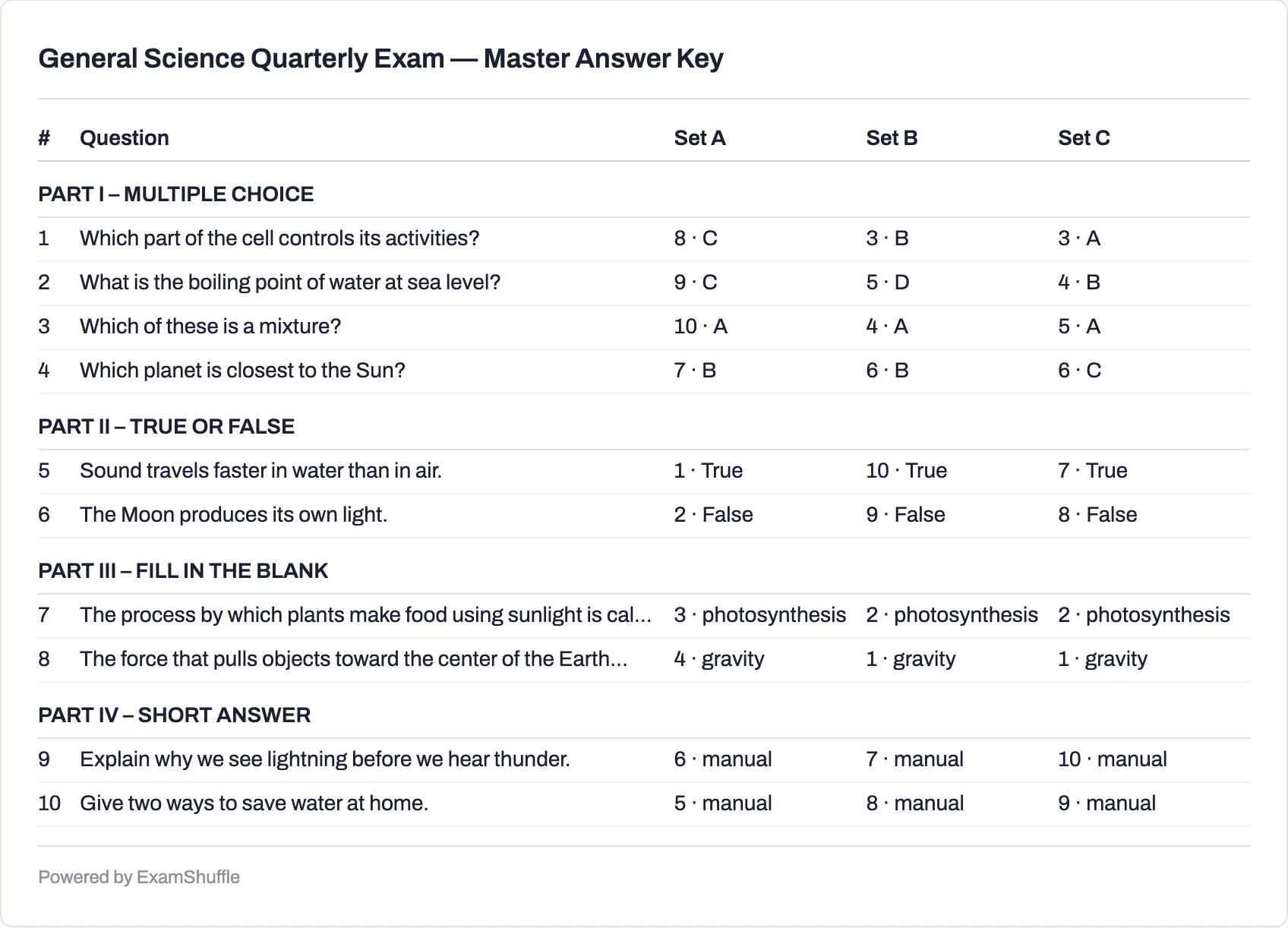
Read across the first row: “Which part of the cell controls its activities?” is question 8 in Set A, where the answer is C, and question 3 in Set B and Set C, where the answers are B and A. Row 3, “Which of these is a mixture?”, has the answer A in every version, because that question’s options were locked in their original order on the review screen.
A few more things you will see:
- True-or-false questions show
TrueorFalse, and fill-in-the-blank questions show the accepted answers, separated by a slash. - Short-answer questions show
manual, because they are graded by hand. Their model answers are printed on each version’s own key. - Long questions and answers are shortened with “…” so the table fits on the page. Each version’s own key has the full text.
- Parts and sections get their own heading row. If your questionnaire has sections, each group of rows is headed with the section’s title, and questions that belong to no section are headed No section.
How to get it
On screen: on the Preview screen, click Show the answer key, then the Master key tab, next to the version tabs.
As a file: on the Download screen, choose Every version and leave Include the answer key ticked. The download then contains the papers, an answer key for each version, and one more file whose name ends in _MasterKey, in Word or PDF, whichever you chose. If you download a single version, there is no master key, because the version’s own key already covers it.
Each table fits four versions across the page. If you make more than four, the master key continues in further tables, and each one repeats the question column, so every page can be read on its own.
Use 1: Mark one question across every version
Many teachers mark question by question: every student’s answer to one question, then the next. It is faster, and you judge every student’s answer to a question by the same standard.
With several versions, that normally means sorting the papers first, because question 8 is a different question in each version. The master key removes that step:
- Take one row of the master key, which is one of your original questions.
- Pick up a paper and read its version from the footer, for example “Set B · Page 1 of 2”.
- Read that version’s cell in the row. It tells you which question number to look at on this paper and what the answer should be.
- Mark it, and move to the next paper.
When you finish the pile, move to the next row.
This matters most for questions you mark by judgement, such as short answers. Marking them one question at a time across every version is the fairest way to apply the same standard to everyone.
Use 2: See which questions the class got wrong
After the exam, you will want to know which questions caused trouble. Each version’s own key can’t tell you that: question 8 of Set A and question 8 of Set B are different questions, so adding them up tells you nothing.
The master key lets you count by original question instead:
- Make a tally sheet or spreadsheet with one column per original question, numbered the way the master key’s # column numbers them.
- For each paper, use its version’s column to find where each original question is, and record right or wrong under the original question’s number.
- Add up each column.
Now a column with many wrong answers points at one question in your original file, whichever versions it appeared in. You can reteach the topic it covers, or rewrite the question for next time.
If you are worried that one version was harder than another, record the version as well. Are your exam versions equally difficult? explains what to look for.
Use 3: Fix a question after the exam
Sometimes a question turns out to be faulty after the exam. It may have two defensible answers, or a typing error that made it confusing. You decide to accept both answers, or to drop the question for everyone.
Without a master key, you have to find that question in every version’s key separately, and a missed version means some students are marked differently from others. The master key shows the question’s number in every version on one row. Write the change on that row once, then apply it to each pile of papers.
Before you print
- Set every answer on the review screen. A multiple-choice question with no answer selected also shows
manualin the master key, which is easy to miss in a table full of letters. - Print the master key with the papers. Reloading the page keeps the same versions, so the preview still matches the papers you printed. Clicking Reshuffle does not: it makes new versions, and the papers you already printed no longer match the new keys. Download the papers and keys together, and keep the master key with them.
- Keep the per-version keys too. If you mark one version’s pile from start to finish, its own key is easier to follow than the master key, and it holds the full answers. Managing answer keys across versions covers labelling, checking and sorting.
Summary
- The master key has one row per original question and one column per version. Each cell gives the question’s number and answer in that version.
- It comes with every download of every version with answer keys, and on the Preview screen under Master key.
- Use it to mark one question across a mixed pile, to count wrong answers by original question, and to fix a faulty question in every version at once.
- Set every answer before you download, and print the master key at the same time as the papers.
To try it, upload your exam, or follow the worked example with the sample exam and open the Master key tab at step 5.