A worked example: one exam from upload to printed versions
This guide follows one exam through ExamShuffle from start to finish, with a screenshot of every step. The exam is the ten-question sample science test from our formatting guide: four parts, one of each question type, and an answer key at the end.
You can follow along with the same file. Every screenshot below is from a real run.
Step 1: Upload the exam
On the home page, choose your Word or PDF file, or drop it onto the box. To follow this guide exactly, click Try it with a sample exam under the box instead. It loads the same sample file used here.
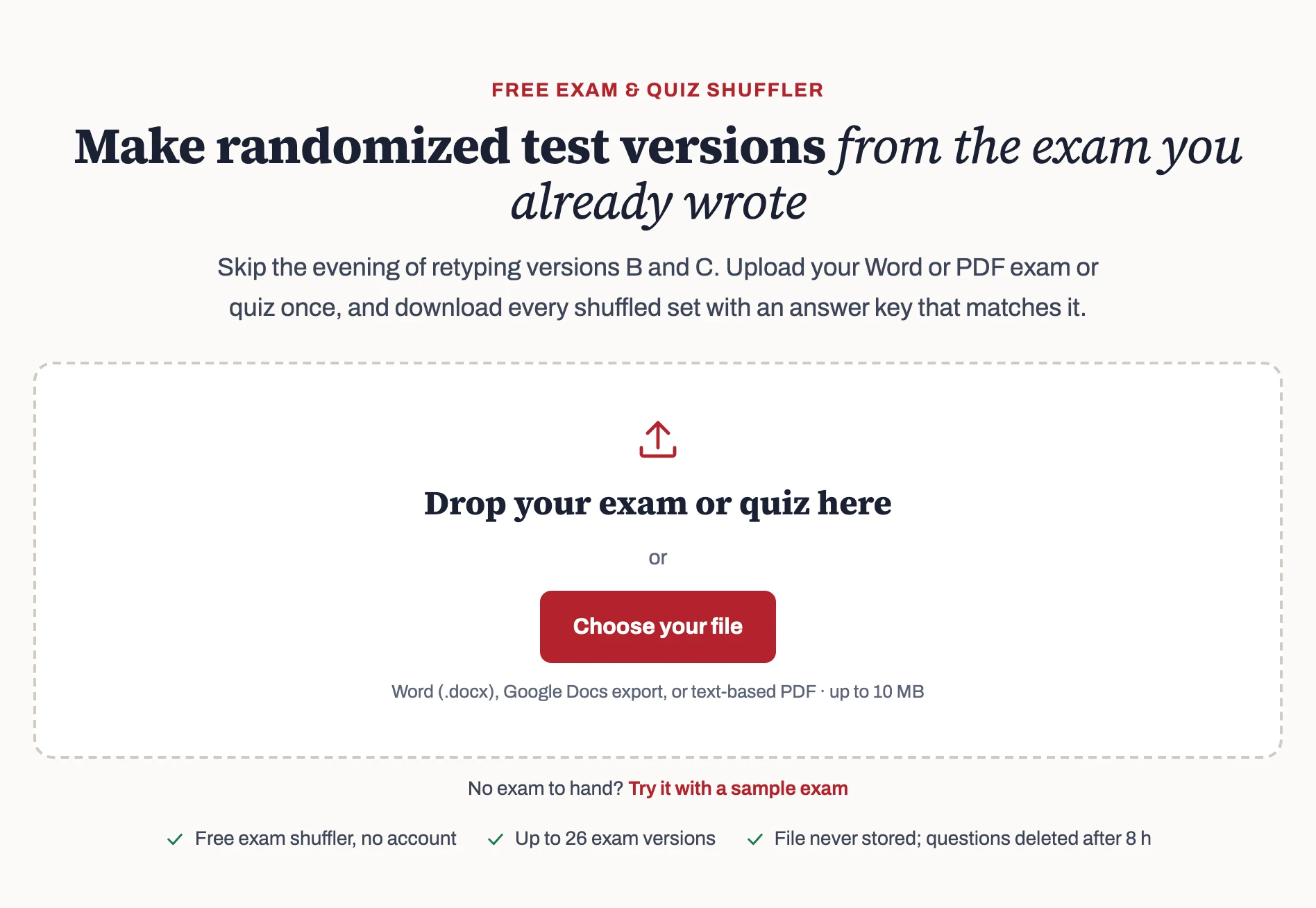
The file is read in a few seconds and you land on the review screen.
Step 2: Check what was read
Every question appears on the review screen in its own box, grouped under the part it came from. Here is the first one.
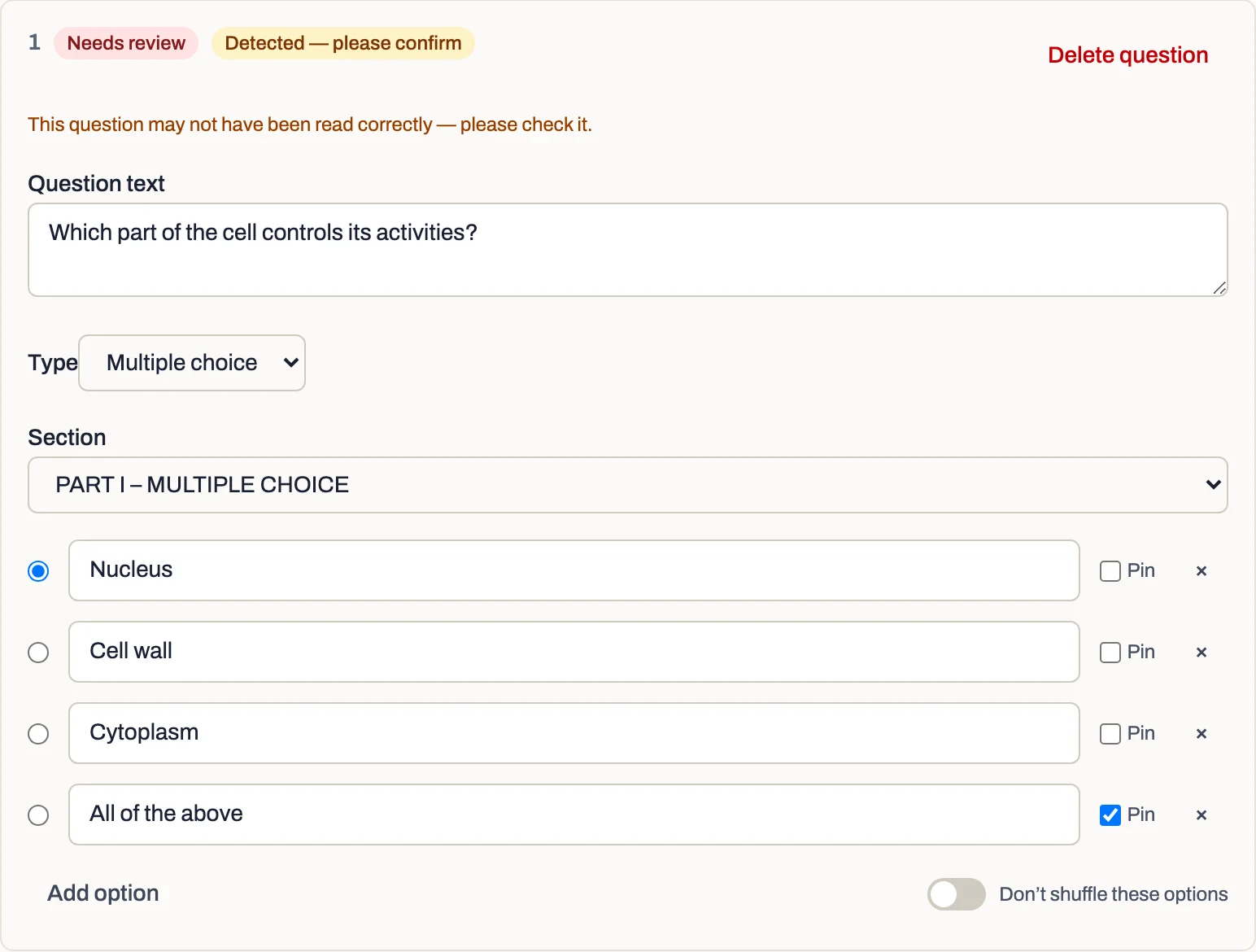
A few things to notice:
- The correct answer is already selected. It came from the answer key at the end of the file. Because it was read rather than chosen by you, the question is marked Needs review and Detected — please confirm. Read each one and make sure the selected option is right.
- “All of the above” has Pin ticked. It will stay in the last position in every version, where it makes sense.
- Question 3 has “Don’t shuffle these options” switched on. Its last option is “Both B and C”, which would point at the wrong options after a shuffle, so that question keeps its options in their original order.
The short-answer questions in Part IV are marked for hand grading. The model answers from the file’s answer key still come through: they are printed on each version’s answer key.
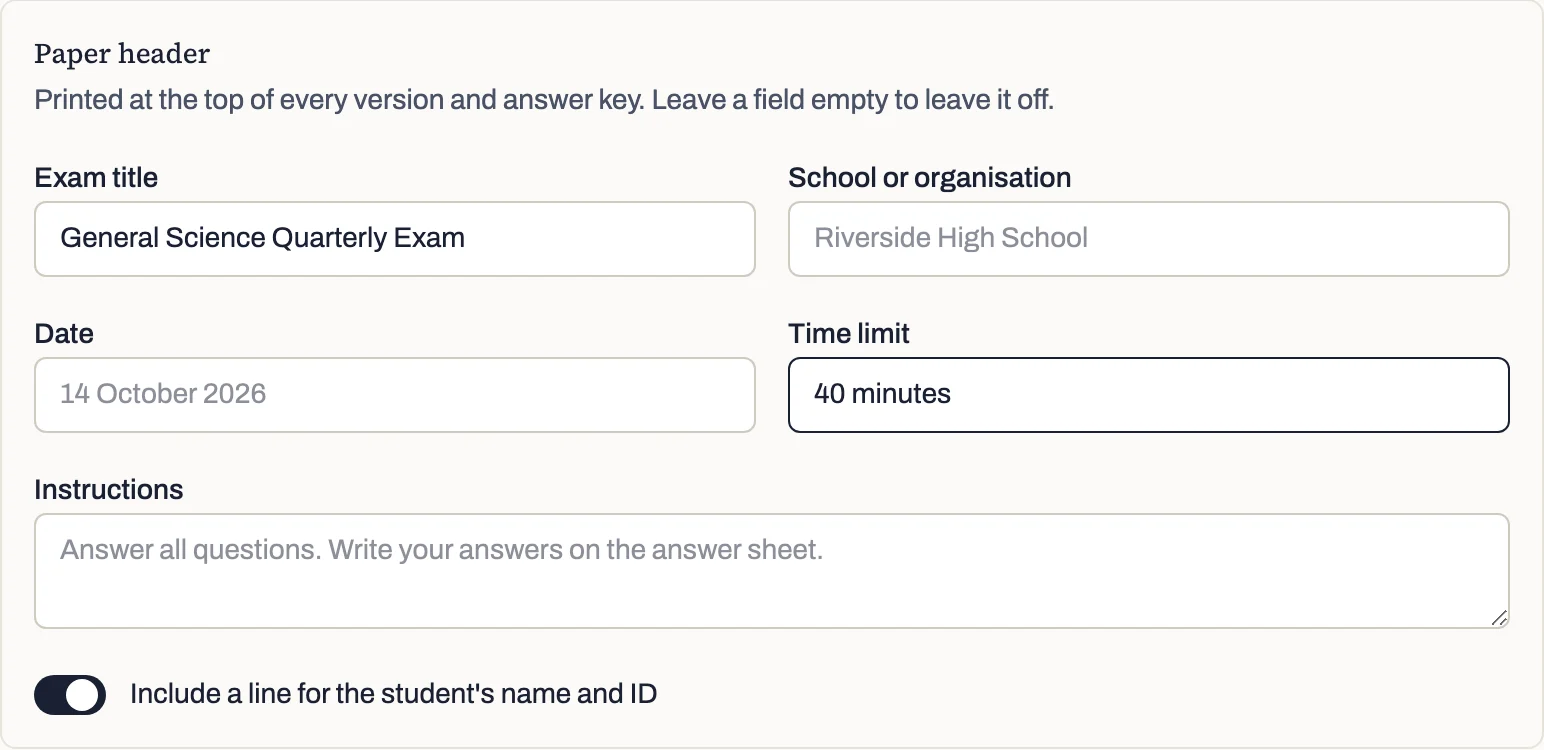
Then fill in the paper header. It is printed at the top of every version and answer key, and any field you leave empty is left off.
Step 3: Choose how many versions
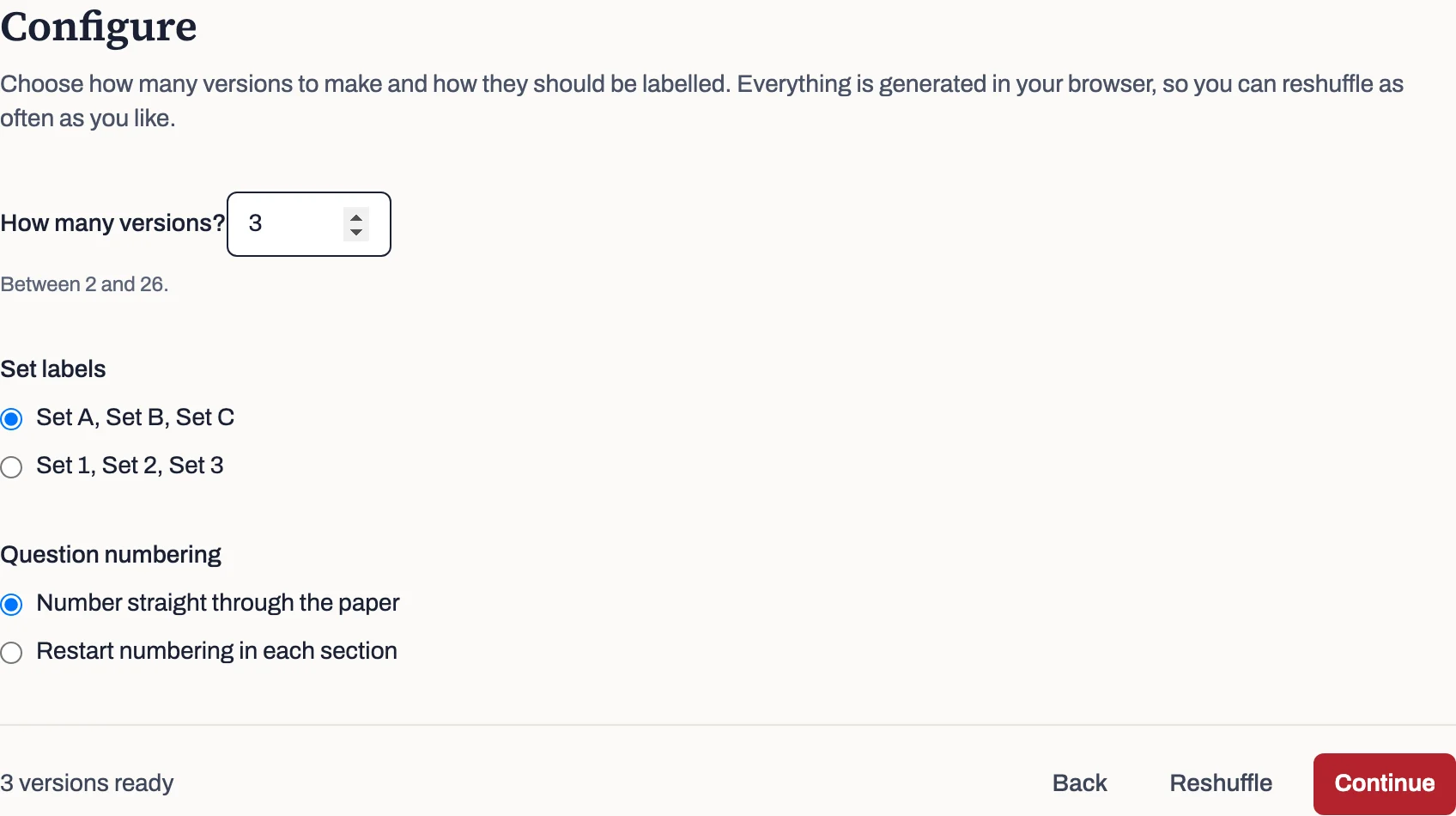
On the next screen, choose how many versions to make, from 2 to 26. This example uses three. You can also label them by letter or by number, and choose whether question numbers run straight through the paper or restart in each part.
Step 4: Compare the versions
The preview shows what each version contains, in the order it will be printed. The fonts and page breaks of the downloaded file differ a little. Here are the tops of Set A and Set B.
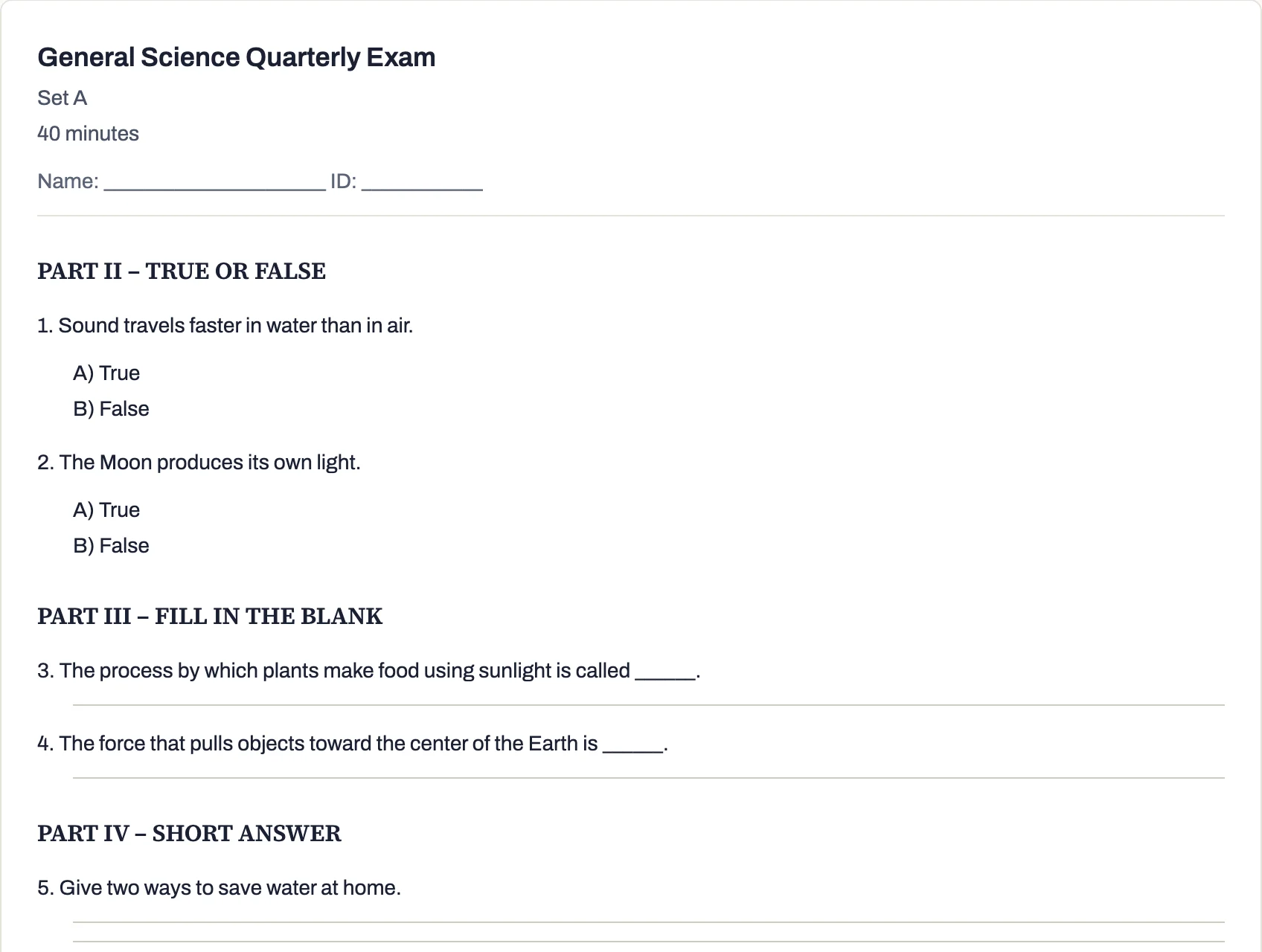
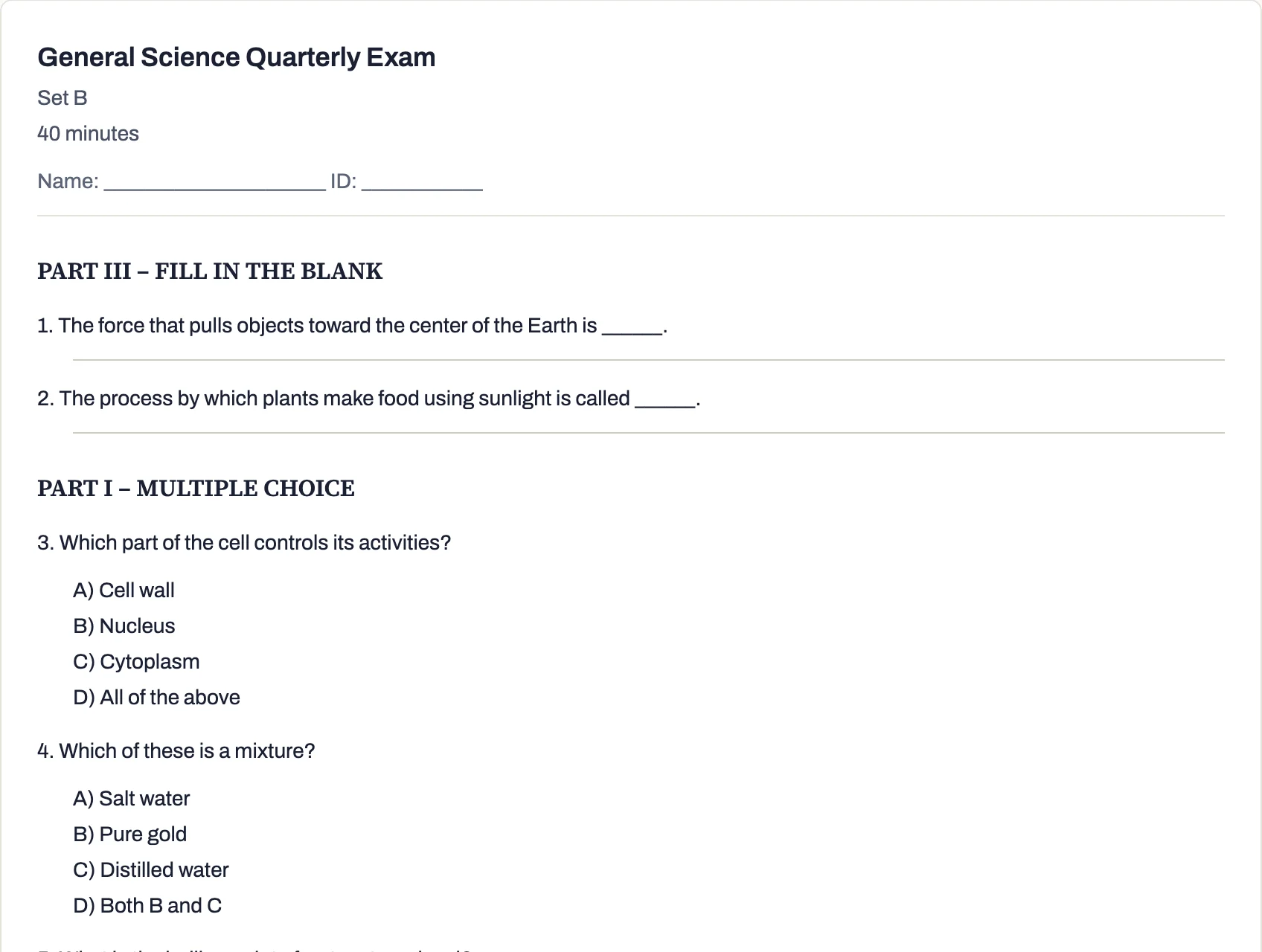
Three kinds of change are visible:
- The parts are in a different order. Set A opens with the true-or-false part and Set B with the fill-in-the-blank part.
- The questions are in a different order within each part. In Set A, “Sound travels faster in water than in air” comes before “The Moon produces its own light”. In Set B the two are reversed. A question never leaves its own part.
- The options are in a different order. In Set B, the cell question lists Cell wall, Nucleus, Cytoplasm, and then All of the above, still last.
And three things do not change: every version has the same ten questions, true-or-false options always read True then False, and the “Both B and C” question keeps its options exactly as written.
Step 5: Check the master key
Click Show the answer key to see each version’s own key, then the Master key tab. The master key lists every question in the order of your original file, with its number and answer in each version.
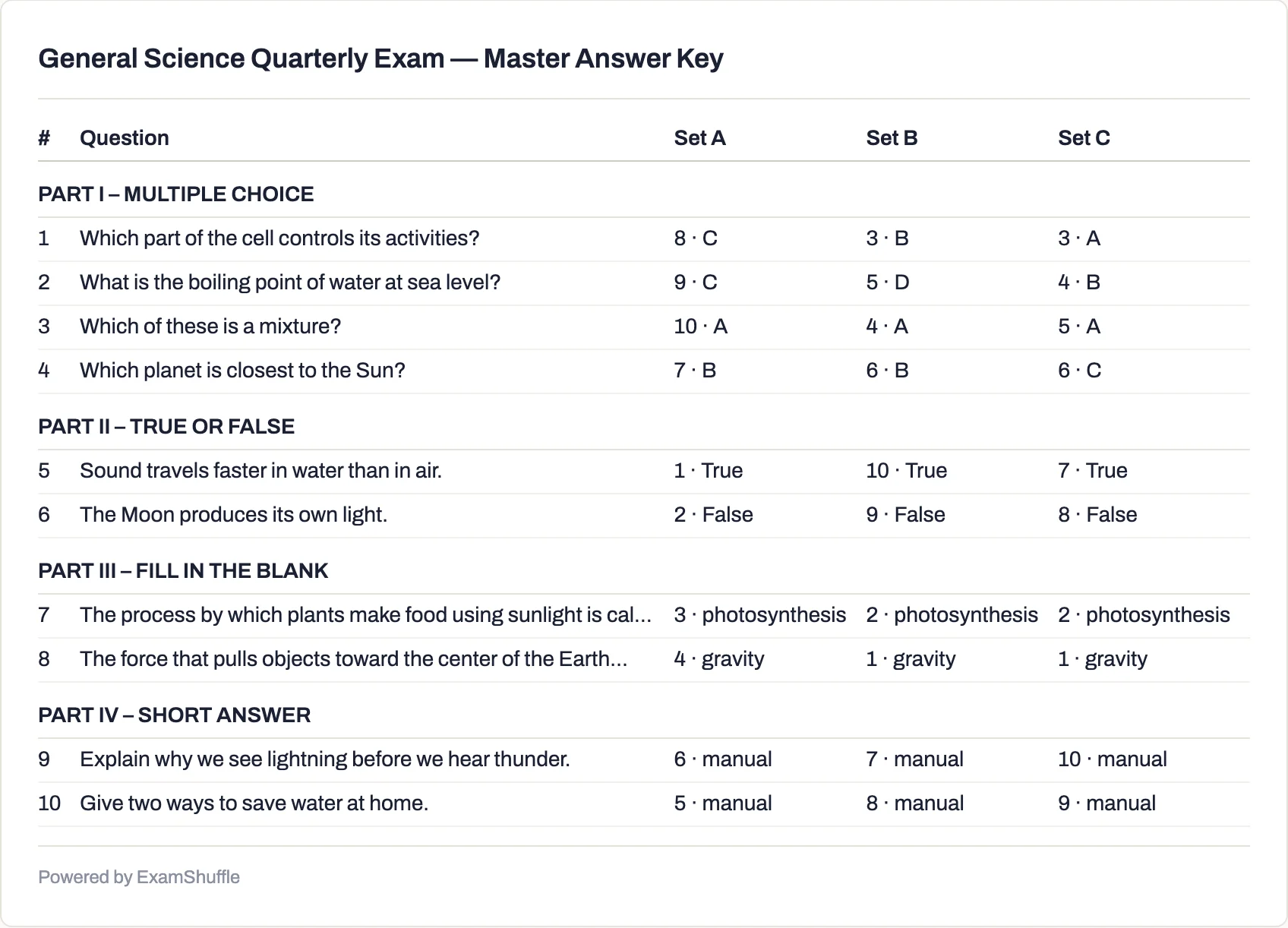
Read the first row: “Which part of the cell controls its activities?” is question 8 in Set A, where the answer is C, and question 3 in both Set B (answer B) and Set C (answer A). The “Which of these is a mixture?” row shows the effect of the locked options: its answer is A in all three versions.
The master key is the quickest way to grade a mixed pile of papers, and to see which of your original questions students got wrong most often, whatever version they sat.
Step 6: Download and print
On the download screen, choose Word or PDF, the paper size, the print size and the spacing. Leave Every version and Include the answer key selected.
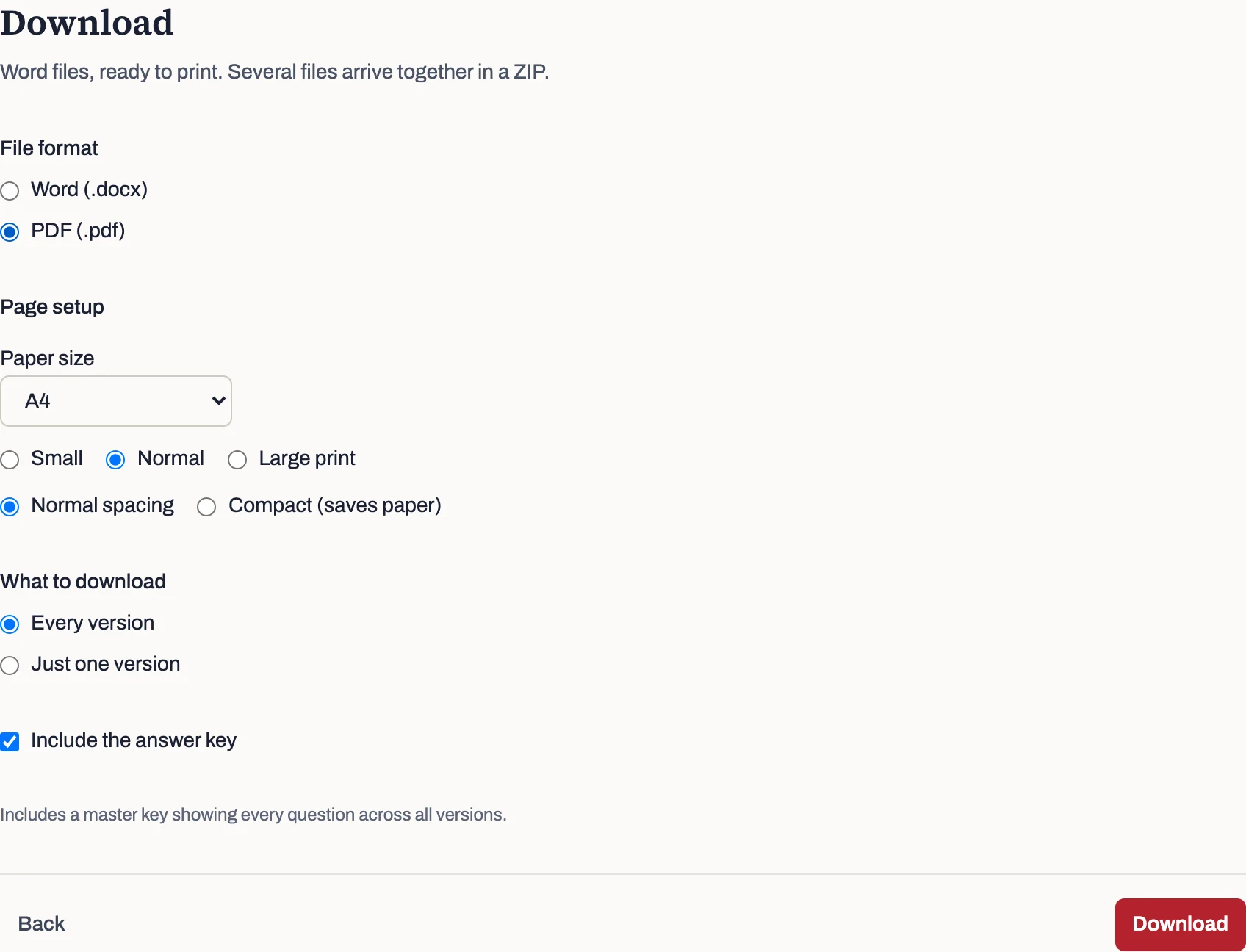
For three versions you get a ZIP with seven files: the three papers, an answer key for each, and the master key.
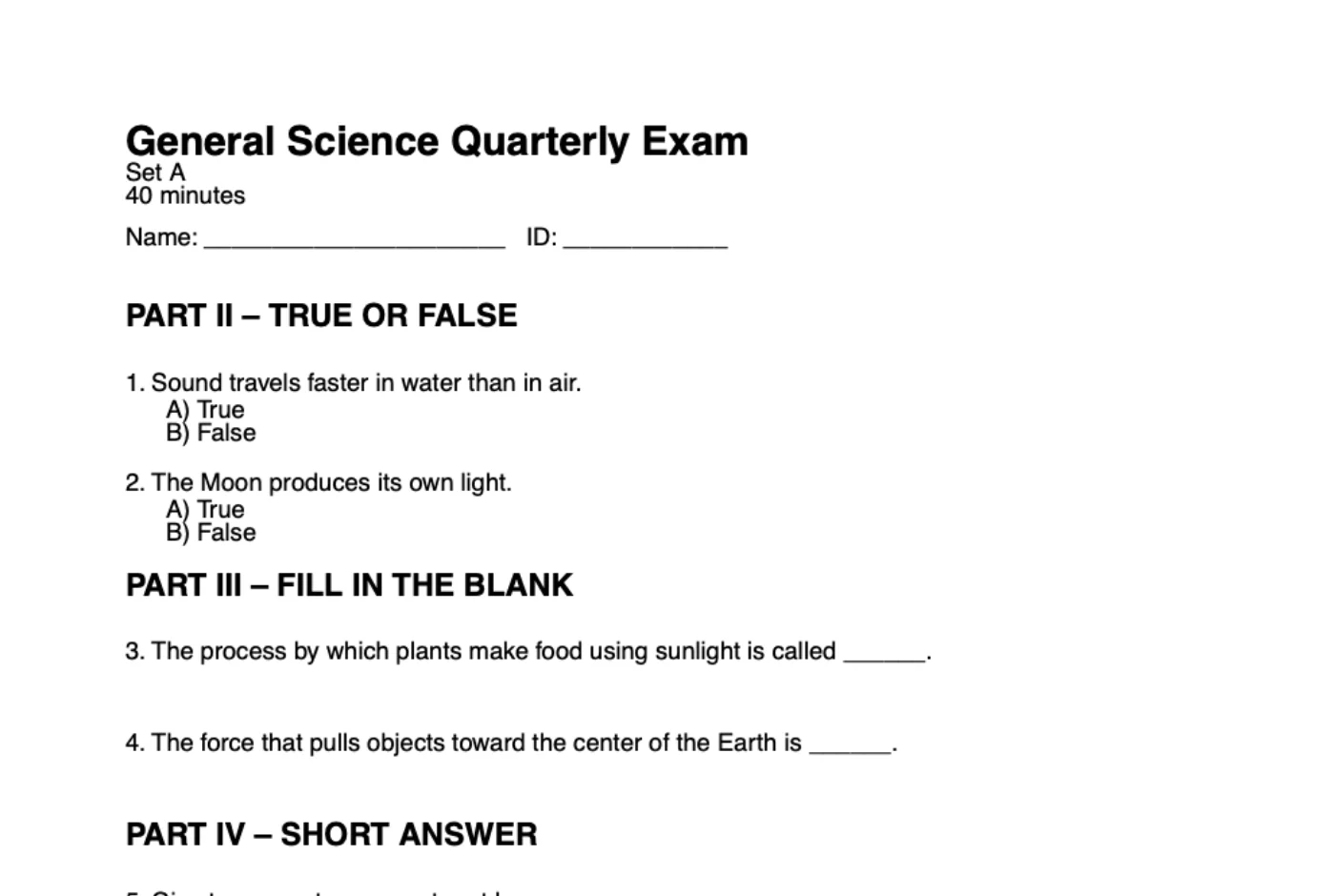
Every page footer reads like “Set A · Page 1 of 2”, so a page that comes loose from its stack can be matched to the right key.
Try it with your own exam
The steps are the same for your own file. If a question was read wrongly, fix it on the review screen before you continue; the formatting guide explains the layouts that read best. When you are ready, upload your exam.